
Manage Pages
The Pages section allows you to create, edit, organize, and manage all the pages on your website.
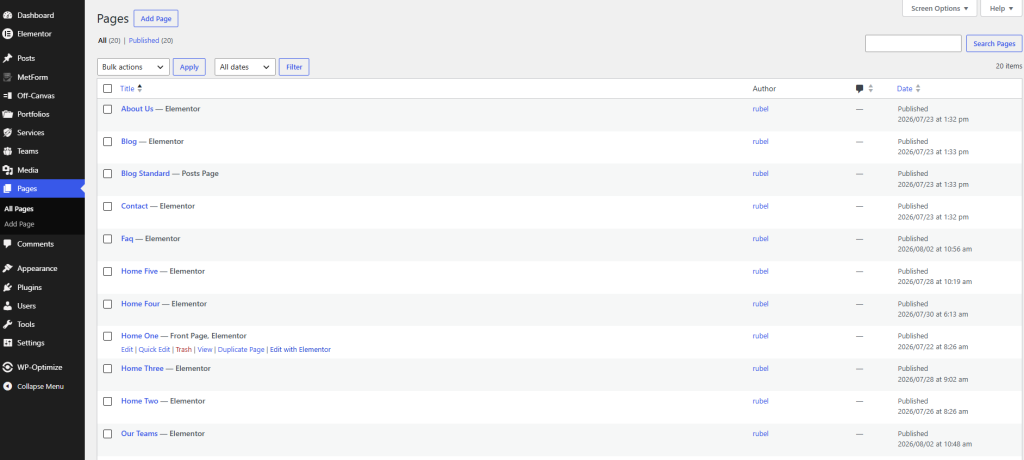
How to Access
Navigate to:
Pages → All Pages
Create a New Page
- Go to Pages → Add Page.
- Enter a Page Title.
- Build your page using the WordPress editor or Edit with Elementor.
- Configure the page settings as needed.
- Click Publish to make the page live.
Edit an Existing Page
- Go to Pages → All Pages.
- Hover over the page you want to edit.
- Choose one of the following options:
- Edit – Edit the page using the WordPress editor.
- Edit with Elementor – Edit the page visually with Elementor.
- Make your changes.
- Click Update to save.
Available Actions
From the All Pages screen, you can:
- Edit – Modify the page content and settings.
- Quick Edit – Quickly update the page title, slug, author, or status.
- Trash – Move a page to the Trash.
- View – Preview the published page.
- Duplicate – Create a copy of an existing page (if the feature is enabled).
Filter and Search Pages
The All Pages screen allows you to:
- Filter pages by Date.
- Search for pages using the search box.
- Perform Bulk Actions such as moving multiple pages to the Trash.
Using Elementor
Most demo pages are built with Elementor. To customize a page while preserving its design:
- Go to Pages → All Pages.
- Hover over the page you want to edit.
- Click Edit with Elementor.
- Make your desired changes.
- Click Update to publish the changes.
Note: Avoid deleting or renaming imported demo pages unless necessary, as they may be linked to menus, templates, or other theme features.